Getting Started
Logging In
When you navigate to the application URL, you are presented with the login screen.
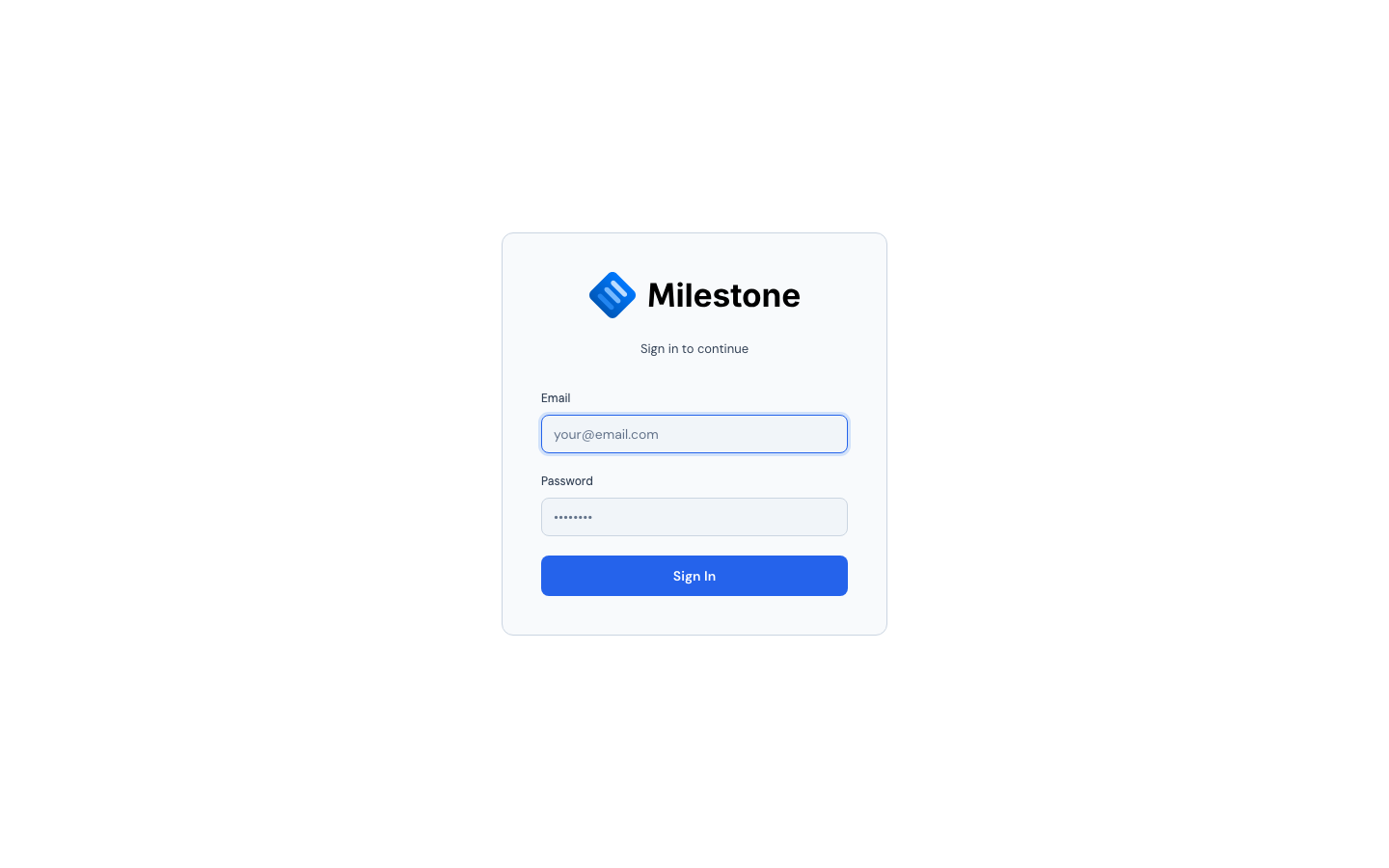
- Enter your email and password, then click Sign In.
- If your organization uses Microsoft Entra ID (SSO), click Sign in with Microsoft to authenticate through your corporate identity provider. The SSO button only appears if configured by your administrator.
The Main Interface
The application is organized into several areas:
- Sidebar (far left) — Switch between the five main views: Gantt Chart, Staff Overview, Equipment, Cross-Site, and Archived
- Header (top) — Branding, site selector, date navigation, zoom controls, theme toggle, and user menu
- Project Panel (left-center) — Hierarchical list of projects, phases, and subphases
- Timeline (right) — Visual Gantt bars aligned to a calendar
Navigation
Sidebar Views
| Icon | View | Description |
|---|---|---|
| Gantt | Gantt Chart | Project timeline with phases and resource assignments (default) |
| Staff | Staff Overview | Staff members with assignments and availability |
| Equipment | Equipment | Equipment items with booking timelines |
| Cross-Site | Cross-Site | Overview of projects across all sites |
| Archive | Archived | Completed/archived projects |
The sidebar can be collapsed to icon-only mode for more screen space. Administrators see additional Admin links for user management, site management, and configuration.
Header Controls
Left — Branding & Context:
- Logo and instance title (customizable by admin)
- Site selector dropdown to switch between locations
Center — Timeline Navigation:
- Arrow buttons to scroll the timeline backward/forward
- Today button to jump to the current date
- View mode: W (Week), M (Month), Q (Quarter), Y (Year)
- Zoom controls (−, the current percentage, +) to adjust timeline cell width (12px to 120px)
Right — Actions & User Menu:
- Panels toggle — Show/hide Staff and Equipment panels below the Gantt chart
- What-If toggle — Enter/exit scenario planning mode
- Theme toggle (light/dark)
- Online users indicator
- User menu (profile, logout, and the version this instance is running)
The header adapts to the window width
On a narrower window the bar collapses in stages rather than crowding. Button labels shorten to icons first; below roughly 1280px the zoom and undo/redo controls move into a ⋯ menu beside the notification bell, and below about 1024px the view switcher and the theme and What-If toggles join them. Nothing is removed — everything stays reachable in that menu, and zoom and undo/redo also have keyboard shortcuts.
Checking your version
The bottom of the user menu shows the version this instance is running, for example v1.4.0. It is read from the server each time you open the menu, so if your administrator upgrades the instance while you have the application open, the number changes here — reload the page to pick up the new version.
User Roles
| Role | Permissions |
|---|---|
| Admin | Full access: manage users, sites, settings, projects, assignments |
| Superuser | Manage projects and assignments, use What-If mode; cannot manage users or settings |
| User | View-only access to projects and timelines |